From a moment to a loop
The qkit manual: install it, loop it, shape it, keep your session in time and cook it!
Overview
qkit is a looper plugin designed for live performance: VST3 and Audio Unit on macOS, VST3 on Windows. It keeps listening to its input all the time so a loop can be taken from what you just played or recorded going forward. Each loop is a tape, locked to your DAW's beat: it follows tempo changes and automatically corrects any drifts. It can be reversed, layered, shifted and sent to its own output.
Install
- Mac: unzip and copy
qkit.vst3to/Library/Audio/Plug-Ins/VST3andqkit.component(Audio Unit) to/Library/Audio/Plug-Ins/Components. Rescan plugins in your DAW. - Windows: unzip and copy
qkit.vst3toC:\Program Files\Common Files\VST3. Rescan plugins in your DAW.
Activate
- Open qkit. The Activate qkit screen asks for your licence key.
- Paste the whole key from your purchase email (it starts with QKIT-) and press Activate.
Activation needs the internet once per computer. After that, qkit works offline.
The window

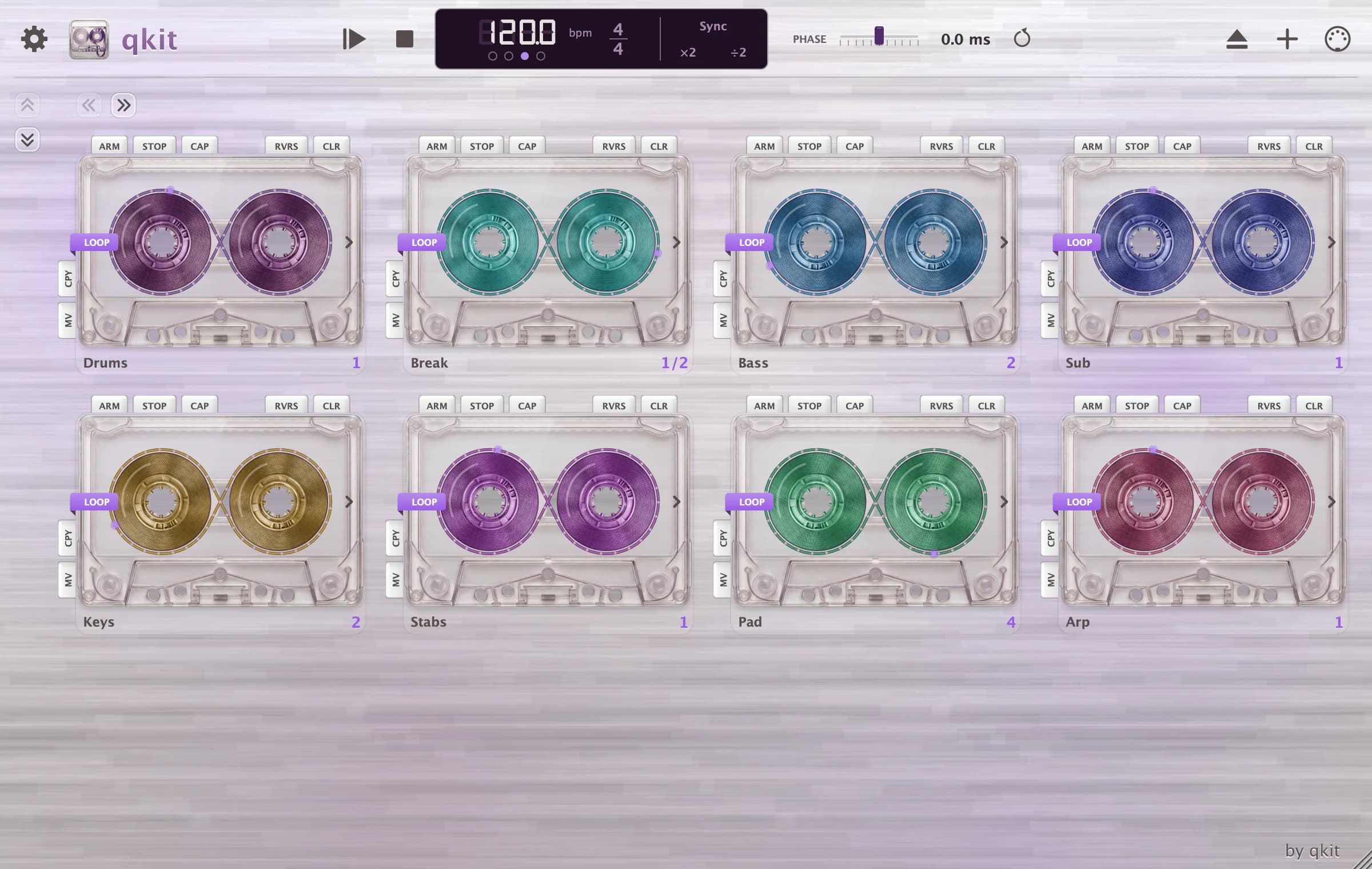
- Top bar, left to right: Settings (gear), the qkit logo (About), the status line, Start all aligns the lyrical "1", Play/Stop, the tempo and beat display, Phase (global phase offset), Init/Reset (clear everything), Add loop, MIDI (the MIDI map).
- Tapes: each loop is a cassette on the grid. The reels turn while it plays. The keys on a tape act on it directly; the › caret on its right opens the tape's panel with all its settings and its waveform.
Making loops
Every tape is always listening. There are two ways to make a loop:
- Arm, then Stop. Arm starts a take (or waits for the input to get loud enough, if a threshold is set). Stop ends it and the tape loops from there.
- Capture. Loops what you just played, for the tape's length, straight away.
The tape keys
| Key | What it does |
|---|---|
| ARM / STOP | Start and end a take |
| CAP | Capture what was just played |
| CLR | Empty the loop |
| RVRS | Play backwards; again: forwards, back on the grid |
| CPY / MV | Mark this loop as the source (MV also empties it once it's taken) |
| PST | Replace this tape's loop with the marked one |
| MRG | Add the marked loop to this tape's loop |
Overdubbing: with the tape's Input and Feedback both up, what you play is layered onto the loop on every pass. Feedback below 100% lets layers fade. The tape's Capture respects the Input value at all times.
A tape's panel
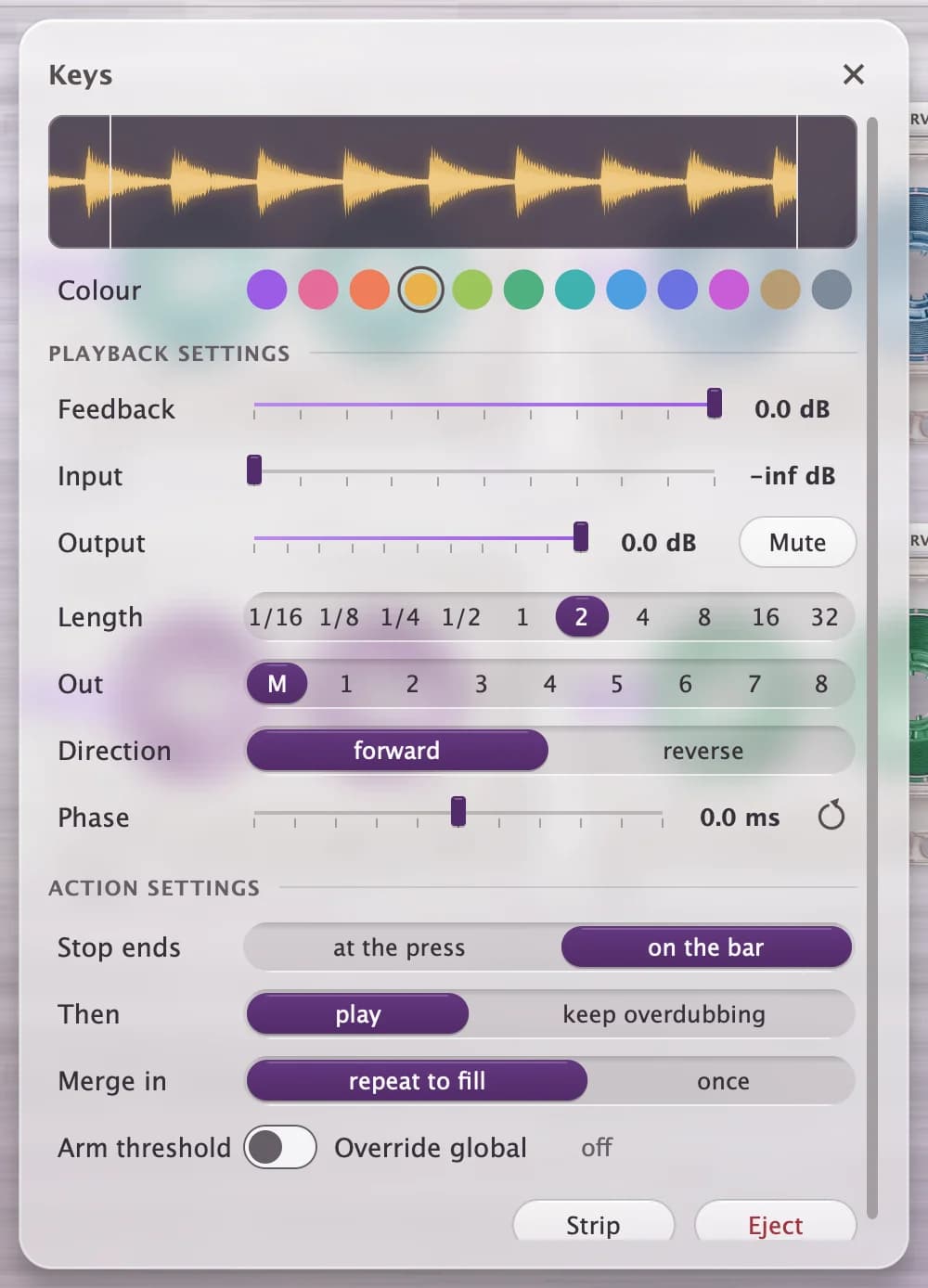
- Input, Output, Feedback: how much of the input is recorded, how loud the tape plays, how much of the loop survives each pass.
- Length: 1/16 to 32 bars. Making a loop longer fills it from what the tape heard before, as far back as qkit kept it.
- Mute: silences the tape without touching its volume.
- Reverse, Phase offset: shifts the loop against the beat.
- Output: Main or Auxiliary 1-8.
- Action settings: what Stop ends in, the threshold, and how merges of different lengths behave. These come from the group or the global settings unless overridden here.
- Strip: clears every other tape. Eject: removes this tape from the template.
Tempo
- The tempo shows --- until it's set. Sync adopts the DAW's tempo; Capture, or raising Input and Feedback, also syncs.
- With the tempo unset, your first Arm → Stop decides it from the take.
- ×2 / ÷2 double or halve it. A tempo set in qkit is its own: loops run on it until you press Sync.
- How loops follow tempo changes (Settings): Pitch preserving (the default), Pitch preserving (cached), which uses less CPU over long runs, or Varispeed, like tape: the pitch moves with the tempo.
Outputs & groups
In your DAW, route Auxiliary 1-8 to other tracks to mix or process tapes separately.
- Main output
- 1, on qkit's own track
- Auxiliary outputs
- 8
Groups (Settings → Projects → Groups) give several tapes one output, one set of action settings and one threshold, and let you Clear, Reverse or Mute them together.
MIDI & OSC
MIDI
Press MIDI in the top bar, click a control, then send a CC or note (or type it in). Value controls can map to a range, e.g. Feedback 0.5-0.8. Tapes are mapped by their place on the grid. MIDI acts at once.
OSC
- Turn the server on in Settings → Connections (port
9595by default). The OSC directory in qkit lists every address and builds messages for you. Examples:/StartRecord/0,/Capture/0,/SetParameter/0/Feedback 0.8,/Clear/*,/SyncHostTempo. Add/~1to apply a message on the next bar. - Allow other devices lets phones and tablets on your network connect; each one is asked about once.
Projects
- Settings → Projects: New, Save, Save as, Open, and the projects folder (default
~/Music/qkit/Projects). A project holds every tape's audio and settings. - Your DAW's saved set also keeps everything, audio included.
- File format (Settings): 24-bit FLAC by default; 16-bit is smallest, 32-bit float is exact.
Settings
- Recording buffer: how many seconds of input qkit keeps for Capture and longer loops, from 192 seconds up.
- Memory: how much RAM the tapes' history may take.
- Arm threshold: Arm waits for the input to reach this level.
- Loop seam crossfade: how long a loop's end fades into its start.
- Free-run when stopped: loops keep cycling when the DAW is stopped.
- Use BPM Decider: enables qkit to detect BPM from the first take using Arm and Stop
- Stretch mode: the re-stretch mode that qkit uses.
- Collect diagnostic data: keeps a log (no audio) for bug reports. About → Save diagnostic report… writes it to a file you can send us.
DAW notes
- Logic / GarageBand, audio tracks: qkit only runs while the track has something to play: a region under the playhead, or input monitoring or record turned on. On a software-instrument track it runs whenever the track is selected.
- GarageBand might ask to “lower the security settings” when it loads qkit. That's expected for plugins that aren't from Apple; answering yes is safe.
- Windows Firewall asks once when OSC's Allow other devices is on; allow it for your DAW (Windows Security → Firewall & network protection → Allow an app through firewall).
- Mono and stereo tracks both work. On a mono track, Main plays the tapes' left and right mixed down.
Still have a question?
Find quick answers in support, or write to [email protected]. A diagnostic report (About → Save diagnostic report…) helps a lot with bug reports.